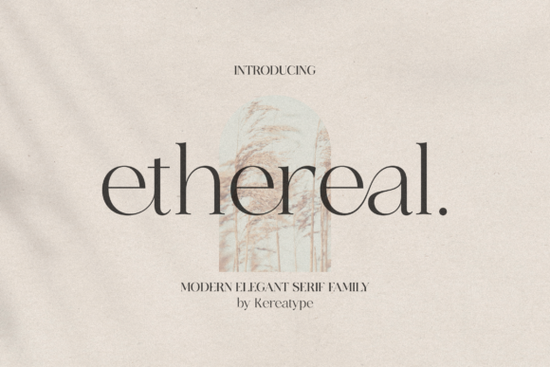
Finding the right typography for a new brand or craft project usually comes down to balancing readability with personality. The Ethereal Font is a modern serif family designed specifically for creators who need a touch of elegance without sacrificing a contemporary feel. It includes multiple weights and stylish alternate characters, making it a reliable choice for logo design, boutique branding, and print-on-demand products. Understanding its specific features will help you decide if it fits your current design needs.
What makes a serif typeface work for modern branding?
Classic serifs often feel too traditional or stiff for modern businesses. This family solves that by keeping the elegant base structure but adding fashionable, slightly stylized extras. These extra flourishes give the text a custom, high-end look. Small business owners often want a custom lettering appearance without the cost of hiring a professional lettering artist. Using a well-crafted family with built-in alternates gives you that bespoke feel right out of the box. When you are building a visual identity for a beauty brand or a boutique, these subtle details make a big difference. If you prefer a slightly more vibrant and bold aesthetic, you might also explore other lively serif options to see what fits your specific brand voice best.
How do you access hidden swashes and glyphs?
Many crafters and hobbyists buy beautiful typefaces but struggle to use the extra characters because they do not have expensive design software. This family is PUA encoded. This means all the special glyphs, ligatures, and swashes are fully accessible even if you are using basic programs like Cricut Design Space, Silhouette Studio, or standard word processors.
To access these characters in basic software:
- Open the Character Map on Windows or Font Book on Mac.
- Locate the specific swash or alternate letter you want to use.
- Copy the character and paste it directly into your design canvas.
For those using professional software like Adobe Illustrator or InDesign, you can simply open the Glyphs panel to browse and insert these special characters directly into your text box. This simple workflow saves time and lets you create unique, custom-looking logos without needing to manually draw vector curves.
Which projects are best suited for this typeface?
Because of its elegant and fashionable vibe, this typeface shines in projects that require a premium or romantic feel. It is highly effective for:
- Wedding invitations and event stationery: The stylish extras add a romantic, personalized touch to names and dates.
- Boutique logos and packaging: The varied weights allow you to create a clear visual hierarchy between the brand name and the tagline.
- Print-on-demand apparel and mugs: The clean lines ensure the text remains readable even when printed on fabric or curved surfaces.
If your current project requires a softer, more delicate appearance, comparing it with similar elegant typefaces can help you finalize your choice. On the other hand, if you need something with a bit more luxury and high-fashion contrast, looking into more refined luxury alternatives might give you additional inspiration.
How should you pair it with other fonts?
Mixing typefaces can be tricky. A good rule of thumb is to let the serif handle the headlines and pair it with a clean, simple sans-serif for the body text. This keeps your layout readable while letting the stylish flourishes stand out. Avoid pairing it with another highly decorative font, as the competing details will make your design look cluttered. A geometric or humanist sans-serif usually provides the perfect neutral background. For more in-depth advice on balancing different styles, you can review how Ethereal principles apply to general web and print layouts.
What should you check before finalizing your design?
Before you export your final logo or send your craft file to the cutting machine, run through this quick checklist to ensure your typography looks professional:
- Check the kerning: Look closely at the spacing between letters, especially around the swashes. Adjust manually if two characters look too cramped.
- Test readability at small sizes: Shrink your design down. If the stylish extras become muddy or hard to read, try using the standard characters instead.
- Verify your license: Make sure you have the correct commercial license if you are selling physical products or using the logo for a registered business.
- Outline your text: If you are sending the file to a printer or using a vinyl cutter, convert your text to outlines or paths so the fonts do not shift.
Tip: Always test your vinyl cut files on a scrap piece of material first to ensure the delicate swashes do not tear during weeding.
Download Now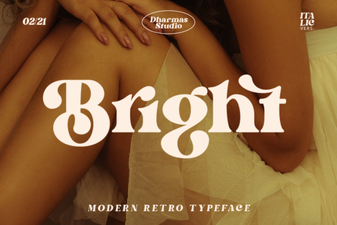 Bright Font Choices for Designers and Digital Projects
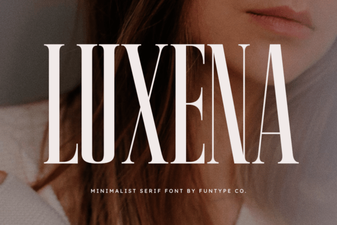 Luxena Font: Elegant Scripts for Creative Projects
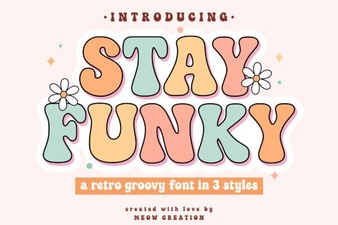 Stay Funky Font for Creative Design Projects
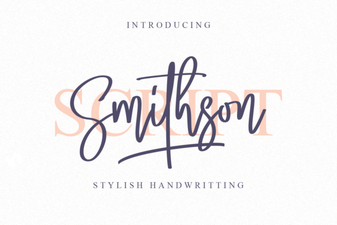 Smithson Font: Design Tips and Inspiration
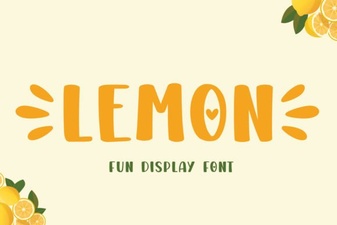 Lemon Font: Fresh Design Ideas for Creative Projects
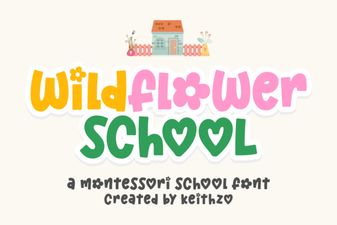 Creative Typography with the Wildflower School Font